For members
You join once with a code. After that the app is three things: see which stands are open, claim one, and tell the board when you arrive and when you leave.
Joining a club
Download Hunt Time from the App Store and create an account with Apple, with Google, or with an email address and a password. Then choose Join a club and type the code your club sent you. Codes are six letters and numbers shown as two groups of three, like RID-GE7. You can also scan the club’s QR code from the same screen.
Pick the name the rest of the club will see on the board. It has to be different from every other name in the club, because the board exists to say who is on a stand. Your name can be different in each club you belong to.
If the club owner has removed you, the code will not let you back in. Ask them to add you again.
Reading the board
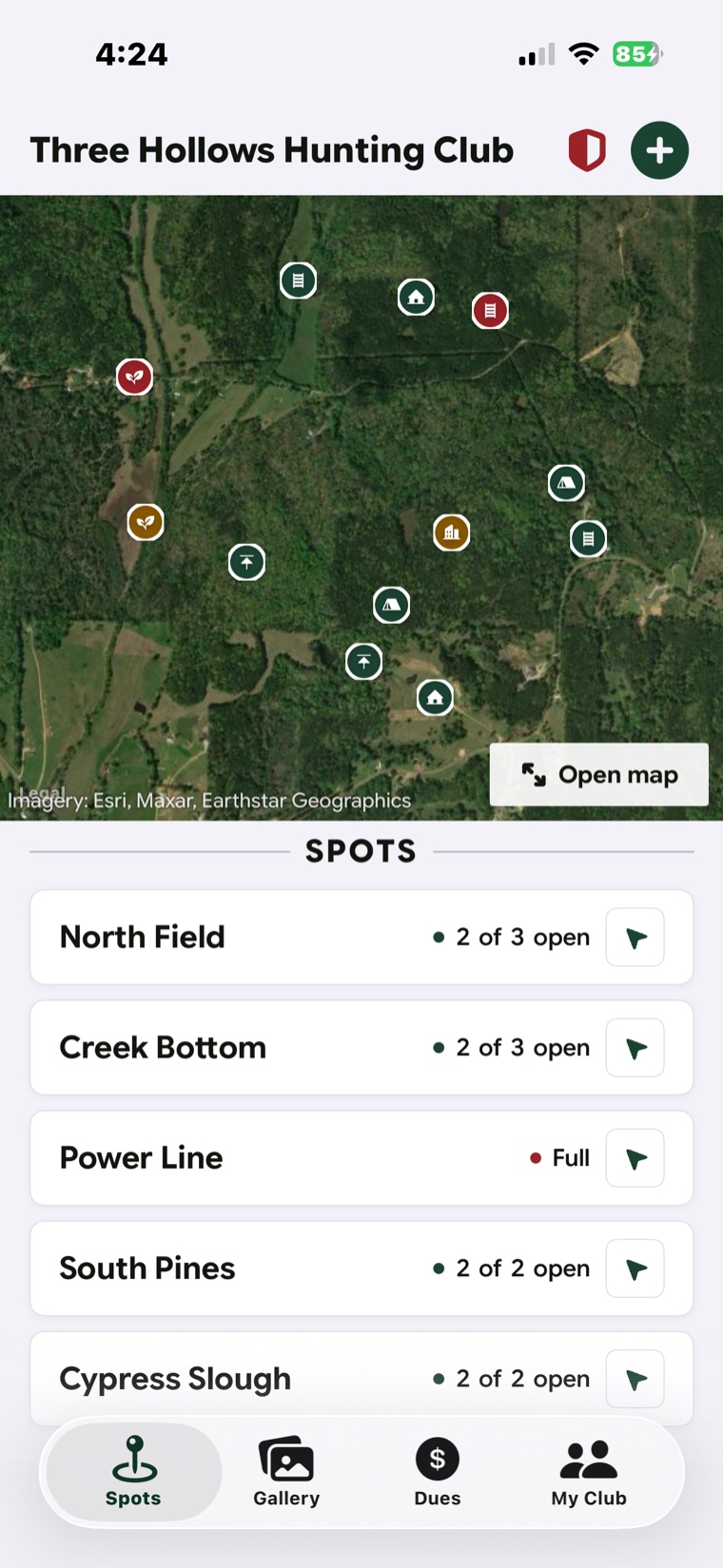
The Spots tab is the board. Stands are grouped under their fields and pinned on satellite imagery of the property. Pick a day and a morning or evening window at the top, and every stand shows one of three states.
Open means nobody has it. Booked means somebody claimed it but has not checked in yet, and the board shows the time their hold expires. Taken means a person is on that stand right now. Each state has a word and a shape as well as a color, so the board reads the same for the one hunter in twelve who is red-green color blind.
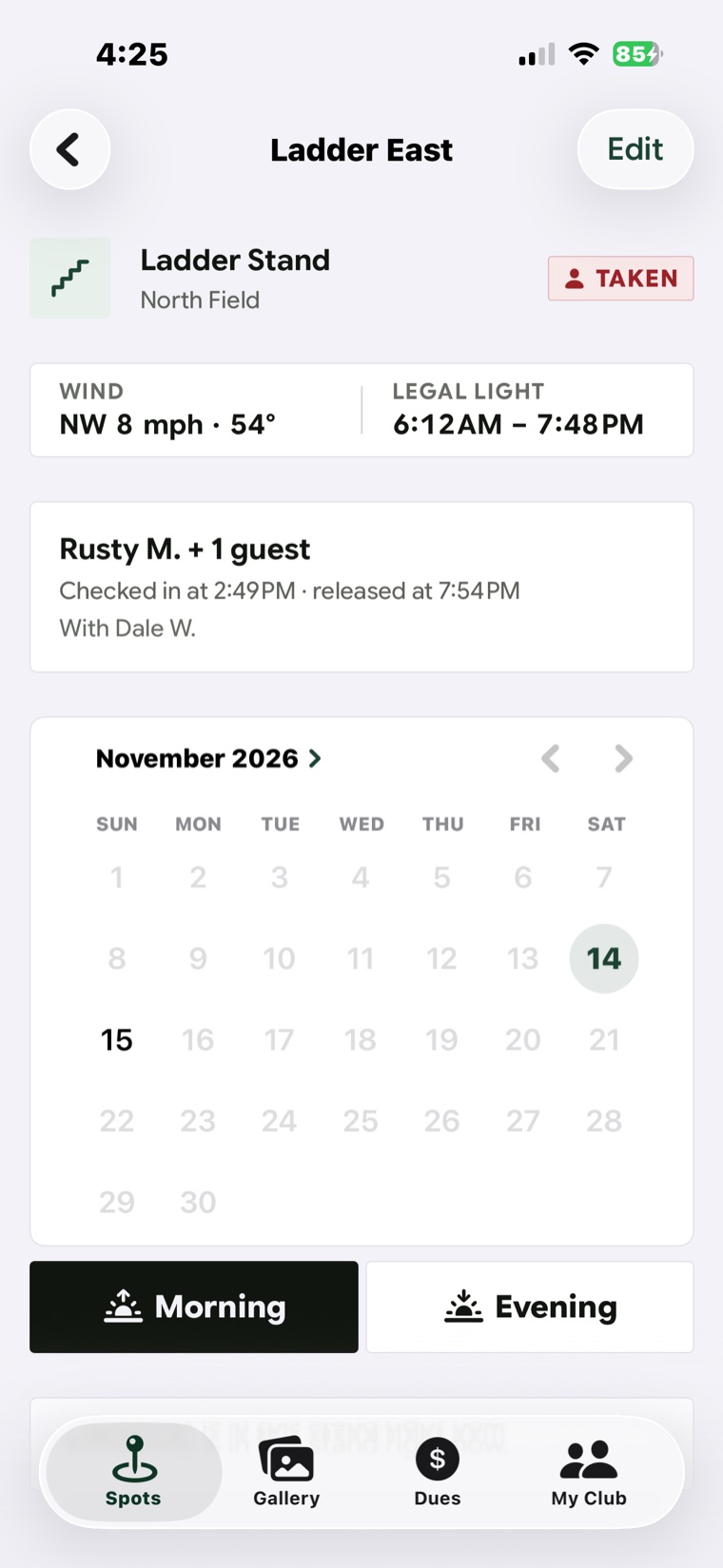
A stand’s page shows its type, its notes, the wind it hunts well on against the current forecast, and legal shooting light for the day. After civil dusk the app switches to a red-shifted night theme on its own.
Booking a stand
Pick the day and window you want and tap an open stand. If you are bringing guests, add how many and their names. Guests ride on your booking; they do not get their own.
Three club settings shape what you can book. The horizon is how far ahead you can book. The cap is how many bookings you can hold at once. If the club uses a claims-open hour, a date’s stands stay locked until that hour and the board shows when they open.
If two members tap the same stand in the same second, exactly one gets it and the other is told who did. There is no silent failure and no green that turns red a moment later.
Checking in
When you get to the stand, open your booking and check in. The stand flips to Taken so nobody walks in on you.
If you did not book, you can still check into an open stand for the window that is running now. The app books it and checks you in at once. You cannot check in more than two hours before a window opens.
Checking in needs a signal. If the app cannot reach the server, it does not give you the stand, because two people booking offline could both be told yes. Check in from the truck, the camp, or the gate before you lose service.
Checking out
While you hold a stand, a banner at the top of the app says so, with a Check out button. Tap it on the way to the truck. Checking out is safe to do twice; the second tap is a success, not an error.
On check-out the app asks how it went. You can log a harvest with the species, notes, and a photo, or skip it.
Auto check-out
If your club has auto check-out on and you allow Hunt Time location access set to Always, your phone watches one boundary around the property and checks you out when you cross it. It never reports where you are. It only reports that you left.
If you keep location off, nothing breaks. Your stand frees itself when the hunt window closes plus the grace period your club set. You can always check out by hand.
No-shows and forgotten check-outs
A booked stand that nobody checks into frees itself a set time after the window opens. A checked-in stand frees itself a set time after the window closes. Both times are club settings, and the board shows them, so a release is never a surprise.
Every stand records how it came free: checked out, drove off, no show, window closed, or cleared by the owner. That record is the club’s, and it is permanent.
Your past hunts
My Club keeps your previous hunts: every stand you held, the day, the window, and how it ended. The club’s harvest log is there too, newest first.
Harvests and the camp gallery
The gallery is the club’s. Harvest photos land in it when you log a harvest, and any member can add a picture to a stand or a field. Photos can be up to 8 MB, in JPEG, PNG, HEIC, or WebP.
Members can like and comment on pictures and pick the cover photo that fronts each field. The owner can remove a photo. Photos are visible to the club and nobody else, and the links behind them expire.
SOS
The safety sheet has a 911 button and a hold-to-send SOS. Sending an SOS pushes your name and your stand to every member of the club at once. Holding it twice in a minute pages the club once.
If a hunt window closes and somebody checked in but never checked out, the club is told. A member alone in a climber with a dead phone is who that alert is for.
Notifications
The app asks to send notifications after your first booking, not on first launch. It sends five kinds: a stand being claimed, a no-show release, a member whose window closed without a check-out, an SOS, and likes or comments on your photos. You can turn off the first two per club.
Your account
- Forgot your password. Tap Forgot on the sign-in screen. A six-digit code goes to your email. Enter it with a new password. Every other device on the account is signed out.
- Lost your phone. Sign in on another phone, open My Club, and tap Sign out on all devices. The lost phone is signed out too.
- More than one club. One account can belong to several clubs, with a different display name in each.
- Deleting your account. My Club, then Delete account. Your sign-in, name, and email are removed and every device is signed out. Your past bookings stay in the club’s records under your display name, because they are the club’s record of who was on the property.